

Professional Workflow for Converting Designs to Babylock Format
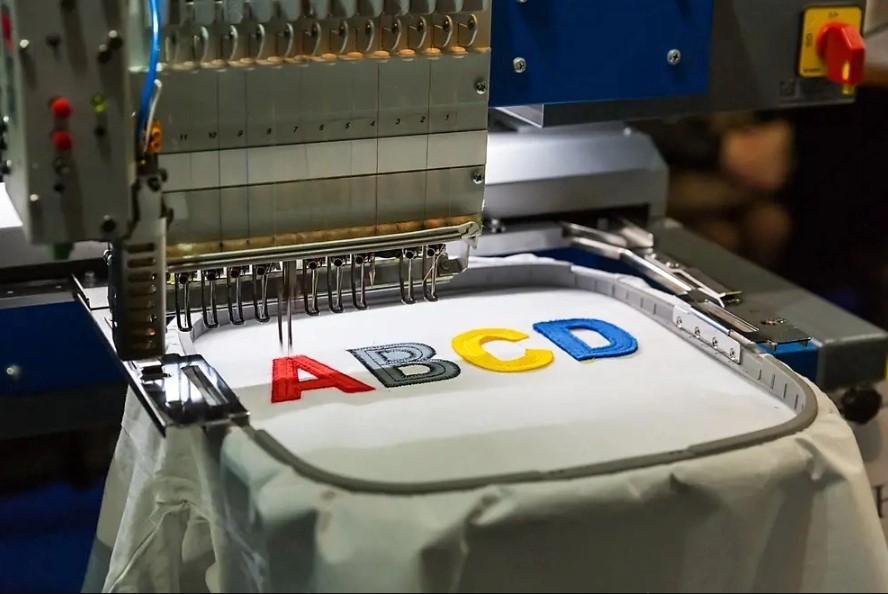
Embroidery pros know the difference between a design that stitches beautifully and one that causes endless headaches often comes down to preparation. You have a stunning logo, a detailed monogram, or a fresh custom graphic ready to go on shirts, towels, or caps, but your Babylock machine needs the file in just the right format to perform at its best. Babylock machines deliver reliable speed, precise tension, and excellent detail handling, especially on multi-needle models built for both home enthusiasts and growing businesses. A streamlined conversion process lets you move quickly from concept to finished product while keeping quality high and frustration low. Convert Embroidery Files for Babylock sits right in the center of that professional workflow, turning your artwork into machine-ready stitches that run smoothly every single time.
Why Babylock Format Conversion Deserves Attention
Babylock machines typically read PEC and PES files with ease, and many models handle them natively for seamless operation. These formats pack stitch coordinates, color order, density info, and compensation data in a way the machine understands perfectly. When conversion skips key steps, you face common issues like misaligned colors, puckered satin stitches, excessive trims, or thread breaks mid-run.
A solid workflow saves time and materials while producing consistent results that impress clients or satisfy personal projects. Once you lock in the process, you handle rush orders confidently, experiment freely with new ideas, and build a library of reusable, perfectly converted designs.
Setting Up Your Essential Toolkit
Start with software that exports cleanly to PEC or PES. Many Babylock owners lean on the brand’s included tools or companion programs because they match the machines’ expectations out of the box. Third-party favorites also work well—options with strong auto-digitizing plus detailed manual controls give you flexibility without complexity.
Keep your source files high quality. Vector artwork in SVG, AI, or EPS scales perfectly and keeps edges crisp. For raster images, aim for at least 300 DPI and clean them thoroughly before importing. A fast computer, a good monitor for spotting tiny details, and a USB drive for quick transfers round out the basics. Organize your folders so original artwork, working files, and final exports stay easy to find.
Cleaning and Optimizing Artwork Before Conversion
Preparation sets the tone for everything that follows. Open your design and remove backgrounds, sharpen contrast, and eliminate noise or stray pixels. Simplify intricate areas—details smaller than two millimeters usually blur or fray during stitching, so enlarge, thicken, or remove them.
Turn gradients and photorealistic shading into flat colors or limited shades to minimize thread changes. Check text carefully: ensure strokes stay thick enough for satin stitches and scale lettering so it remains legible at embroidery size. Lock in your final dimensions early because late resizing throws off density and compensation.
Save the optimized version in a lossless format and double-check that proportions match your intended use—small chest logos need different treatment than large back pieces.
Step-by-Step Professional Conversion Process
Launch your embroidery software and import the cleaned artwork. Choose the hoop size that aligns with your Babylock machine’s largest frame to prevent clipping.
Trace outlines first. Apply satin stitches to text, borders, and fine lines, capping widths between 4 and 10 millimeters for smooth coverage without looping. Fill solid regions with tatami or fill stitches, rotating angles diagonally to distribute pull evenly and reduce fabric distortion.
Add underlay stitches immediately—they form the foundation that keeps everything stable. A zigzag or lattice underlay grips most fabrics well. Set density next: target balanced coverage that feels substantial but stays flexible. Over-dense fills create stiffness and strain needles; under-dense ones show gaps.
Sequence stitches intelligently. Cluster same-color sections, begin in the center and work outward, and eliminate unnecessary jumps to cut trims. Run a full simulation to preview the design and fix problems before they reach fabric.
Apply pull compensation, especially to satin columns, so stitches expand outward slightly and offset inward draw from fills. Insert color stops and trims where transitions need to stay clean.
Export to PEC or PES—most Babylock setups prefer PES for full features. Verify compatibility settings for your specific model, name the file clearly, and transfer it to a USB stick or directly to the machine.
Tuning for Babylock Machine Strengths
Babylock machines shine with thoughtful digitizing. Maintain reasonable stitch counts for long jobs so tension holds steady and the machine stays cool. Shorten stitches on tight curves for crisp, defined edges.
Test every converted design on scrap fabric that matches your final project. Hoop evenly and select the right stabilizer—cut-away for stretch, tear-away for stable goods. Order colors strategically: lighter threads first often conceal tiny registration slips under darker ones.
These adjustments let Babylock’s precision and speed deliver professional-grade embroidery consistently.
Avoiding Workflow Bottlenecks and Mistakes
Too much density remains a top culprit for puckering and breaks—reduce it and reinforce underlay instead. Chaotic stitch paths create extra jumps and floating threads—always plan an efficient route.
Neglecting fabric stretch distorts designs on fitted pieces. Test on actual material every time. Overly complex tiny elements rarely survive stitching, so simplify them upfront. Thread nesting during tests usually signals compensation issues or density overload—tweak and re-simulate.
Building Speed and Confidence Over Time
Begin with straightforward single-color designs to perfect underlay, density, and sequencing. Progress to layered, multi-color work and try varied fill patterns for texture. Practice curving text and subtle dimension techniques.
Document winning combinations for fabrics, threads, and stabilizers in a simple reference sheet. The more files you convert, the quicker you recognize patterns, spot fixes, and turn around high-quality work.
Closing the Loop on Professional Results
A reliable workflow for converting designs to Babylock format transforms how you approach embroidery. You move from scrambling with mismatched files to confidently producing custom pieces—client logos, team apparel, special gifts, or creative experiments—that look sharp and perform beautifully.
Follow the steps consistently, test rigorously, and enjoy those moments when the machine runs flawlessly from start to finish. Your Babylock waits ready to showcase its capabilities, your designs deserve to shine, and now you have a clear, professional path to make every conversion smooth and successful. Grab your next artwork, open the software, and start converting—stunning embroidery results are well within reach.

 English
 Arabic
 Spanish
 Portuguese
 Deutsch
 Turkish
 Dutch
Dutch
 Italiano
 Russian
 Romaian
 Portuguese (Brazil)
 Greek
Greek